S2S Callbacks
The Callback is the basis by which you can reward your users. The Callback is a GET request that is sent to your processing script upon the conclusion of a transaction - either a complete C, screenout F, or overquota P.
This request contains important information about which user needs to be rewarded, what offer was taken, and how much virtual currency they should be paid.
Setup Callback
RapidoReach supports secure hashing on system-to-system callbacks. Please reach out to a RapidoReach account manager to configure the Callback URL. Follow the steps below to complete your setup.
How to create a Processing Script
-
Create an endpoint that can receive a GET request to its location.
-
Reward your users for completes and screen-out rewards (if applicable).
-
Store information in your database
-
Respond with a 1 if callback received & processed correctly and 0 if you require us to repeat the callback (can be repeated three more times).
Add the Callback to your application
-
Go to Apps section.
-
Select your Application.
-
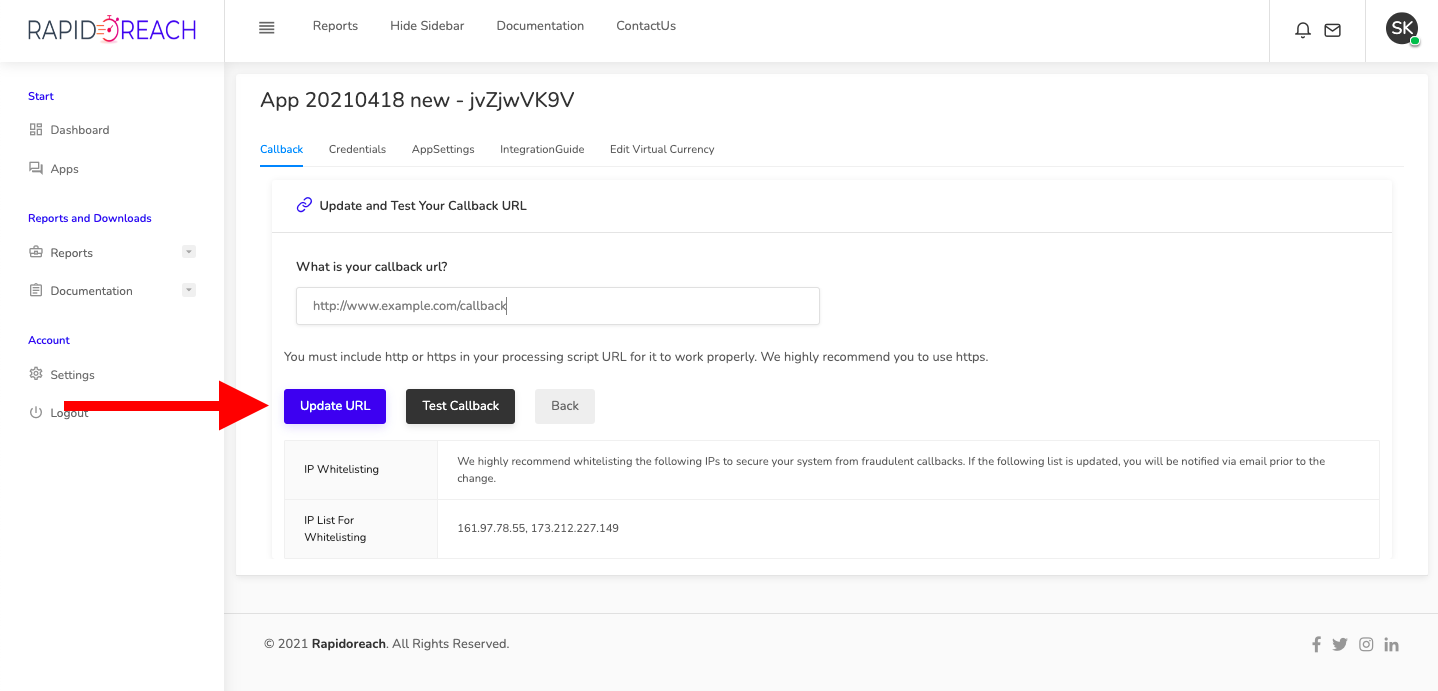
Click on the Callback section.
-
Click on the Setup Callback button.
-
Enter your Callback URL.
-
Click Save button.
Sample callback request
Parameters will be appended with their corresponding variables after the processing script location as follows:
app-domain.com/callback?cmd=C
&userId=user123-yourAppId-32charuidchecksum
&amt=0.01
&offerInvitationId=SampleTransactionId
&status=C
&offerHash=4ff15d01b08583c6d809e0c793a140b3
¤cyAmt=1.00
&transactionId=SampleTransactionId
&endUserId=user123
&txnHash=571139e8d6dca4514fb81eb18b0af126
&useragent=Rapidoreach
¤cyName=cb
&offerType=1
&deviceType=Desktop
&intergrationMethod=IFRAME
Callback Parameters
| Parameter | Type | Description |
|---|---|---|
| cmd | string | Transaction command/status code. Common values are C complete, P overquota, F screenout/termination, and R reconciliation/reversal where applicable. |
| userId | string | RapidoReach userId as generated earlier. |
| endUserId | string | End user ID which you are using within your app/website for your user. |
| amt | number | Amount paid in dollars to you for this particular transaction. |
| offerInvitationId | string | Enables you to remember for which offer a user has been rewarded for. |
| status | string | Transaction status code. Common values are C complete, P overquota, F screenout/termination, and R reconciliation/reversal where applicable. |
| offerHash | string | 32-character hex string: md5(transactionId + AppKey). Recompute it with the callback transactionId and your App Key to verify the callback. |
| currencyAmt | number | Payout to user in your virtual currency. Important for screenout rewards.integer (default) or float (on request). Indicates how many points the user should get in your site’s virtual currency. Based on your configured conversion rate on the control panel. Negative values indicate chargebacks. |
| transactionId | string | Unique ID representing a single user participating in a single survey/offer, please include if requesting support for a particular transaction. |
| txnHash | string | 32-character hex string: md5(transactionId + AppSecret). You can find your App Secret/Transaction Key in your Application list. |
| currencyName | string | Your configured virtual currency name. |
| offerType | string or number | Offer type used for reporting and callback testing. |
| deviceType | string | Device type when known, such as Desktop. |
| intergrationMethod | string | Current callback parameter spelling for the integration method, for example IFRAME. Keep reading this exact misspelled parameter for compatibility. |
| sub_id | string | Optional alias identifier to track traffic on campaigns, can be used for testing and segmentation purposes. Please ask our team to enable sub_id for you. |
IP Whitelist
Note: TransactionKey is the same as your App Secret in the dashboard.
We highly recommend whitelisting the following IPs to secure your system from fraudulent callbacks. If the following list is update, you will be notified via email prior to the change.
161.97.78.55, 173.212.227.149, 75.119.139.250, 75.119.139.251
Setup callback IP whitelist
-
Go to Apps section.
-
Select your application.
-
Click on the Callback section.
-
Under the IP Whitelist section click the Copy IP Whitelist button to copy the IPs to your clipboard.
How to Test the Callback
The Test Callback button will generate a test complete. The test complete will fire a callback to the specified URL. It is best to test callbacks before deploying the app in production.
First ensure that you have whitelisted the IPs listed in the above section.
Instructions
-
Go to Apps section.
-
Select your Application.
-
Click on the Callback section.
-
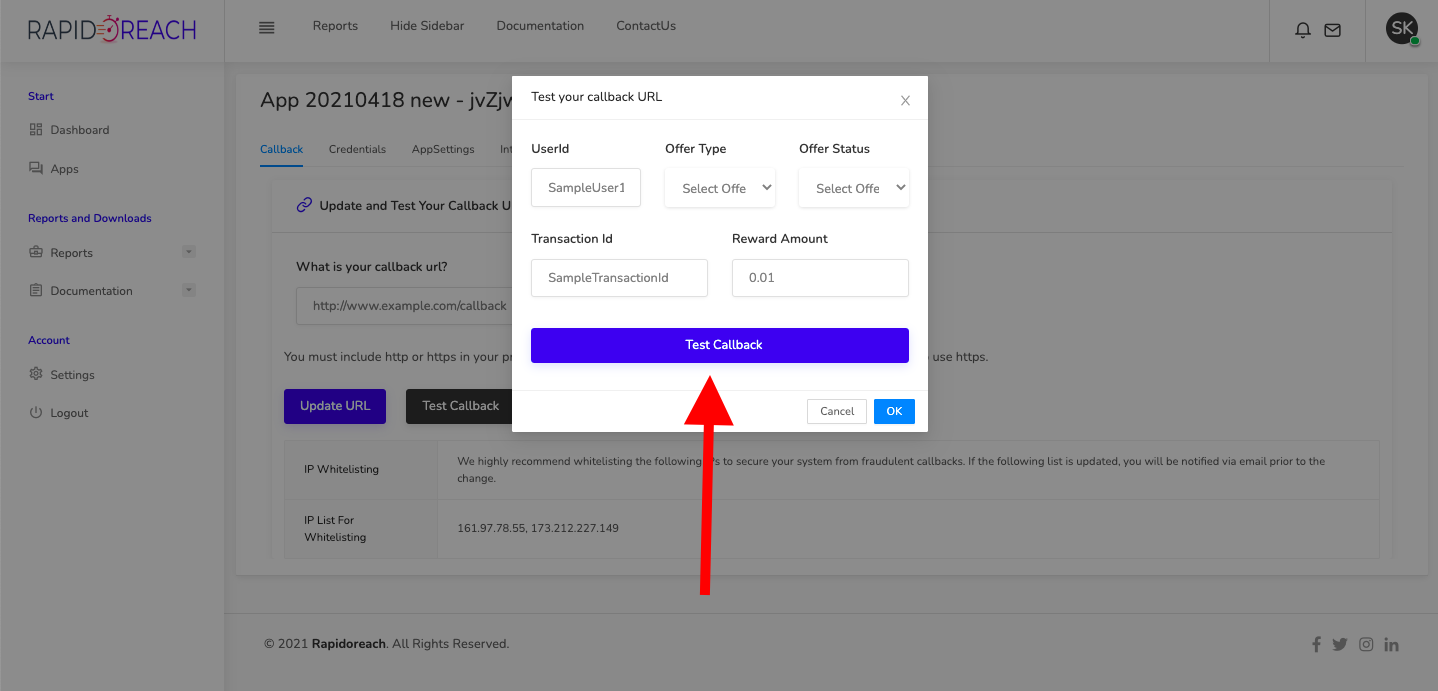
Click on the Test Callback button.
-
Fill out the form with the parameters you want and click the invoke Test Callback button.
-
Get your results.